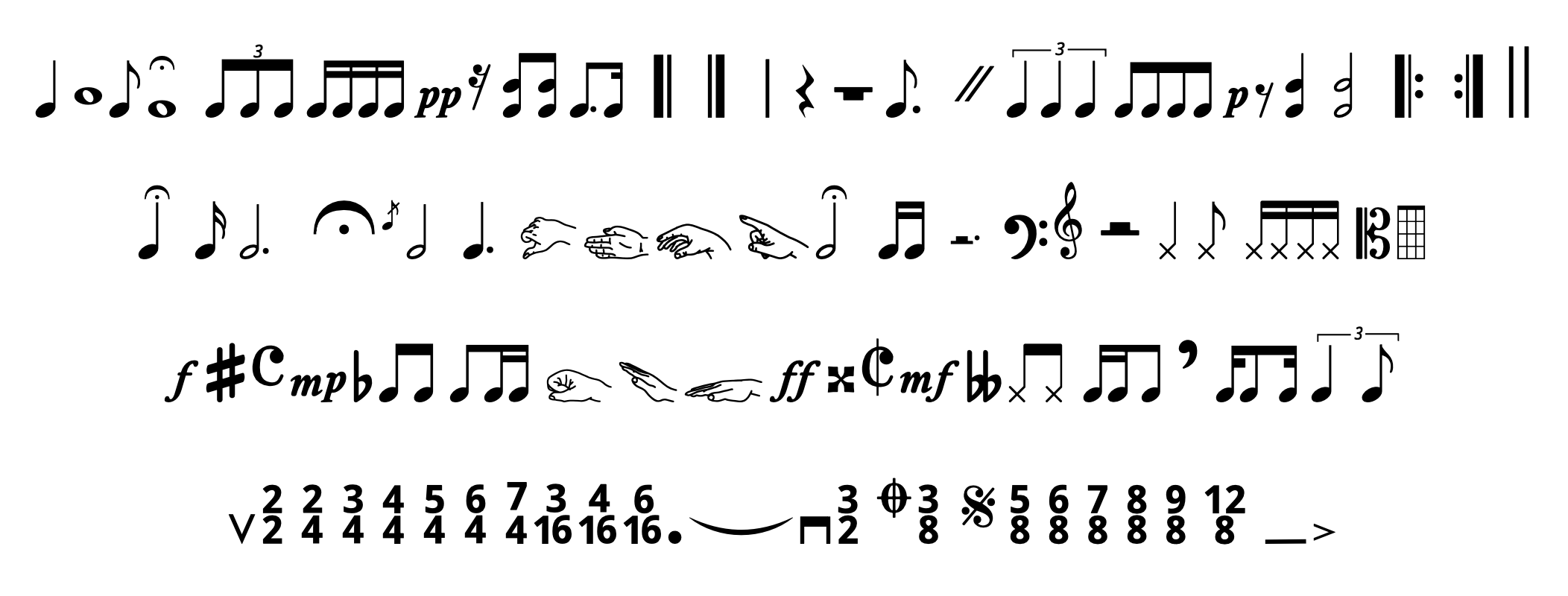
Creating clear rhythm patterns for music lessons can be surprisingly time-consuming. Traditional notation software is useful for writing complete musical scores, but it can feel unnecessarily complicated when you only need to create a short rhythm for a slideshow, worksheet, game, or classroom activity.
That is why I created Best Music, a custom music notation font designed to make it quick and easy to type simple rhythm patterns.
Instead of displaying normal letters, the font replaces keyboard characters with common music notation symbols. Once the font is installed, you can select Best Music in a compatible program and type rhythm patterns directly into a text box, just as you would type a normal sentence.
What Is Included in the Font?
Best Music includes many of the musical symbols I use most often when creating simple rhythm patterns for my elementary music lessons. It is especially useful for short rhythmic examples rather than full musical scores.
The font can be used to create materials such as:
Rhythm-reading slides
Poison rhythm activities
Rhythm worksheets
Composition activities
Classroom games
Play-along videos
Assessment materials
Because the symbols function like normal text characters, rhythm patterns can be quickly copied, pasted, resized, aligned, and placed inside text boxes.
Why Use a Music Notation Font?
Music notation programs are excellent for creating polished scores, but they are not always the fastest option for classroom materials.
When I am building a slideshow, I often need to create dozens of short rhythm patterns. Opening notation software, adjusting the spacing, exporting each example, and placing it into the presentation can add a significant amount of extra work.
The font is particularly helpful in PowerPoint because each rhythm can remain an editable text object. This makes it easy to revise or rearrange patterns while building a slideshow.
Using the Font with Google Slides
Google Docs and Google Slides do not currently allow users to install and use their own custom fonts. Because of this limitation, Best Music will not appear directly in the Google Slides font menu.
The easiest workaround is to create your rhythm in Microsoft Word, Microsoft PowerPoint, or another program that supports installed fonts.
Once the rhythm is finished, you can:
Export the rhythm as a PNG or other image file.
Take a screenshot of the rhythm.
Copy the rhythm into an image-editing program and save it as a picture.
Insert the finished image into Google Slides.
Using a transparent PNG is usually the best option because it allows the rhythm to be placed over any slide background without a white box appearing around it.
It is important to remember that once the rhythm has been converted into a picture, the individual notes will no longer be editable as text. For this reason, it is a good idea to save the original Word or PowerPoint file in case you need to make changes later.
Using Best Music in Canva
Canva offers the option of uploading custom fonts, but the process is a bit hard to find. See this video for instructions on how to upload to Canva.
Tips for using the font
For the clearest results, use a large font size and leave enough space around each rhythm. If the symbols appear too close together, increase the character spacing or add spaces between them.
When exporting a rhythm as an image, use the highest available resolution. This will help prevent the notes from becoming blurry when they are enlarged in a presentation.
When exporting documents in Microsoft Word, make sure that embedding fonts is enabled in the save settings. See this video for more information.
Give Feedback
Best Music is my first custom font project, so it will need some tweaking. Providing feedback helps me improve the font as I plan future iterations that are even more usable. Please use this form to provide anonymous feedback on the font, or email me at awreyna@gmail.com